Help & FAQs
Hi there. Did It is a simple space to record what you did today. If you have a question, you'll probably find it below.
What is Did It?
Did It helps you notice what you have already done. Some days that might be: Got up. Made the bed. Had a glass of water. Called a friend. Some days it might be: Finished a project. Went for a long walk. Booked that doctor appointment. All of it counts. Think of it as a daily wins journal and a gentle done list. One person described it as having a receipt for your day.
How is this different from a to do app?
Did It is not a task manager. There are no tasks waiting for you tomorrow. Nothing rolls over. No streaks to maintain. If you skip a day, that is fine. The next day simply starts empty again.
What counts as a "win"?
Anything. If it mattered to you, it counts.
How do I add an entry?
Just tap and type. You can add a quick text entry, take a photo, choose an image from your library, draw a sketch, or personalise it with an icon and colour. The little example phrases you see are just prompts. They rotate to remind you that even small things count.
On iPhone and iPad you can also add something without opening the app first, using Siri AI, Shortcuts, Spotlight or Control Center. And if you already tick things off in Apple Reminders, you can bring the completed ones in.
Does Did It work on iPad and Mac?
Yes. Did It runs on iPad and, as a Designed for iPad app, on Macs with Apple silicon. It's the same journal with a bigger canvas. There's nothing separate to buy or install: the one download on the App Store covers iPhone, iPad and Mac.
To keep the same days on every device, turn on iCloud sync.
Keyboard shortcuts
If you have a keyboard attached, a few shortcuts save reaching for the screen:
| Shortcut | What it does |
|---|---|
| ⌘N | Add a new entry |
| ← / → | Move to the previous or next day |
| ⌘F | Search your entries |
Hold ⌘ on iPad to see the full list.
Does Did It sync across devices?
On iPhone, iPad and Mac, yes, if you want it to. Turn on iCloud sync in Settings and your days appear on every device signed in to the same Apple Account. It's optional, it's off by default, and there is still no Did It account. The sync goes through your own iCloud, so we never see your entries.
iCloud sync is separate from the iCloud backup you may already be using. Backup keeps a copy in case you lose a device; sync keeps the same days on all of them. You can use either, both, or neither.
Android
Android doesn't sync with iOS. Your entries stay on the device, and you can set up automatic backups to a folder of your choice in Settings, or move data between devices with Settings > Export and Settings > Import.
Can I draw in Did It?
Yes. Choose Sketch when adding an entry, draw something, and save it. It lands on the day as a little sticker alongside your text and photos. Sketches are included in shareable images and exports, and they sync with iCloud like everything else.
It's meant for quick doodles rather than artwork: a stick figure, a shape, a squiggle that means something to you. If it captures the moment, it counts.
Can I include things I ticked off in Reminders?
On iPhone, iPad and Mac, yes. Go to Settings and connect Did It to Apple Reminders. Each day then shows the reminders you completed on that day, and you select the ones that matter most to import. Once imported they're ordinary Did It entries, so you can edit them, change the colour or icon, or delete them like anything else. Nothing appears without you choosing it.
Did It only ever reads reminders you've already completed. It doesn't create, edit or tick off anything in the Reminders app.
Siri AI, Shortcuts, Spotlight and Control Center
On iPhone and iPad there are a few ways to add something you did without opening the app first:
- Siri – say something like "Add went for a walk to Did It".
- Shortcuts – Did It has an Add entry action you can use in your own shortcuts and automations.
- Spotlight – search for Did It and add straight from the result.
- Control Center – add the Did It control for a one-tap way to record a win.
- Widgets – Home Screen and Lock Screen widgets, on iPhone, iPad and Android.
Everything you add this way lands on today, and you can edit it later like any other entry.
Can I skip empty days when swiping?
Yes. In Settings, turn on Skip empty days and swiping between days will jump over the ones with nothing on them. A quiet day doesn't have to be a stop on the way to a full one. Turn it off and every day is back in the sequence.
Formatting entries with Markdown
When you compose a text entry, the field is plain text — but Did It recognises a modest slice of Markdown. While you type, you will usually see asterisks, underscores, brackets, or backticks exactly as you write them (not a preview). After you save, the note is displayed with formatting applied. Never use Markdown? Your entries behave like always.
Tap the expandable hint beneath the note field for a compact reminder. This page is the longer version.
Inline styles
| You want | Wrap your text |
|---|---|
| Bold | **double asterisks** |
| Italic | *single asterisks* |
~~double tilde~~ |
|
| Monospace / code snippet | Single backticks, e.g. npm run dev |
| A tappable web link | [the label](https://example.com) — use mailto:you@domain.com for email |
Layouts and paragraphs
- One blank line between blocks reads as separate paragraphs.
- Line breaks mid-paragraph follow familiar Markdown rules (pressing return behaves as you would expect).
Lists and extras
Bullet lists (- or *), numbered lists (1., 2.), headings starting with # (up to six levels), blockquotes (>), fenced code blocks (opening and closing lines of three backticks), and horizontal rules (---) work too — headings appear a bit larger and bolder where it fits.
What stays simple
- Tables and images typed in Markdown are flattened to readable text rather than fancy layout.
- HTML-style tags appear as literal text rather than interpreted markup.
Anything that reads oddly is safe to undo: stored notes are plain characters, just like ordinary typing.
Can I edit or delete an entry?
Yes. To delete a single entry, tap the ••• menu on that entry.
To delete everything, go to Settings > Danger Zone. That will permanently remove all your data from the app.
Can I share my day with others?
Yes, in two ways. Tap the Share button at the top of any day with at least one entry.
As an image - tap Create shareable image. You can then tap to exclude specific entries, so you choose exactly what gets shared. Tap Share Image to save it to your photos, or share with friends.
As text - tap Export text list. You can then select your preferred notes or journal app, or copy the text to paste elsewhere.
Does Did It send notifications?
Only if you want it to. In Settings, you can turn on reminders and choose two times: a gentle check in during the day, and a recap reminder in the evening to reflect on your day. You can turn these off at any time.
Is my data private?
Yes. Did It does not require an account. We do not show ads. Your journal entries — the text, photos, and sketches you add — live on your device, and if you turn on iCloud sync they travel through your own iCloud. We do not have access to them.
We collect anonymous usage analytics (for example, which screens you open and whether you added a text, photo, or sketch entry) so we can improve the app. We never send the content of your entries.
You can read the full Privacy Policy here.
How do I back up or move my data?
Settings > Backup has everything. Export writes all your entries, photos, sketches and settings to a single file you can keep anywhere; Import brings one back in.
On iPhone, iPad and Mac, iCloud backup keeps a copy of your journal automatically, and iCloud sync keeps the same days on all your devices. On Android, you can choose a folder for automatic backups, or let Google's device backup save a limited amount of app data to your Google account. For a full copy of everything, Export is the safe bet.
Is there a subscription?
No. Did It is free and every feature is included. If you'd like to support it, there's an optional tip jar in the app, or you can pick up some merch. If we ever introduce a subscription in the future, it will unlock additional features beyond the basics, without changing the heart of the app.
What's behind the merch slogans?
These slogans came from real life. From watching people I love, and from my own blind spots as someone who is privileged to take a lot for granted. Each one is a small reminder. To notice the day you're in. To see the effort in others that usually goes unseen. Wear one for yourself, or give one to someone who needs the reminder too.
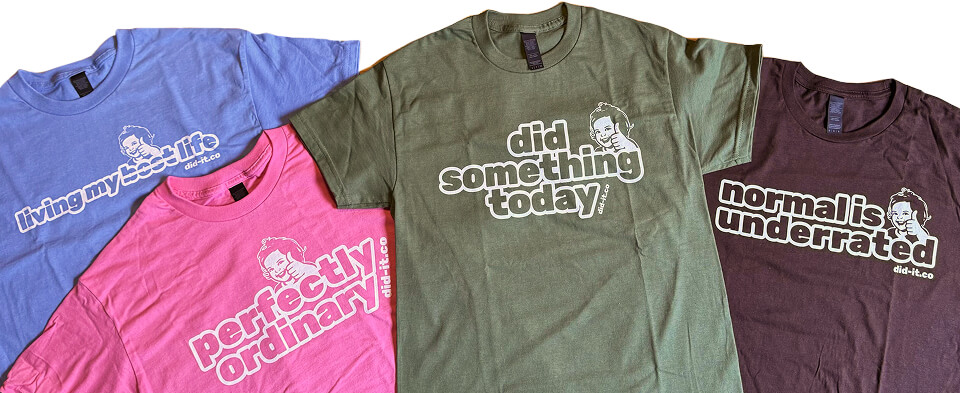
Normal is underrated Getting up. Going outside. Eating a meal. Knowing what to do with the day. I do these without thinking. Some people I love work incredibly hard just to do any one of them. Normal is not a low bar. It's everything.
Living my best life
I kept seeing this phrase and noticing what it was doing to people around me. The quiet stress of not doing enough, not being enough, dulling the days they were actually living. The strikethrough is us pushing back.
Perfectly ordinary We've held onto this phrase in our family for years. It came from a film but it stuck because it meant something to us. Most days aren't exceptional. The majority of a life is ordinary. That's not something to fix or apologise for. It's something to appreciate. It's perfect.
Did something today This is the one that started everything. Before the app, before any of this, just a simple idea. That doing something, anything, deserves a moment of recognition. You did something today. That's worth a high five.
I found a bug or have a suggestion
Thank you. Genuinely. Did It is made by a real human who reads every message. And is loving making it work better for you.
Send me an email with as much detail as you can.
My review isn't showing on the App Store
Taking a moment to leave a review means the world to me, so the fact that you did is lovely. Frustratingly, the App Store filters reviews aggressively to catch fake ratings, and it sometimes catches real ones too, especially when several people review an app around the same time. There's nothing you did wrong and no way to appeal it.
If you'd rather not leave it at that, you can email your review to me and I'll put it on the website instead.
Why did you make Did It?
I initially made it for my partner. She'd reach the end of the day and feel like she hadn't done anything, which was never true. It helped her see that her days were already full of small wins she'd stopped noticing. I started using it myself and found I was actively looking forward to recording the small things, seeing them differently because I knew I'd be writing them down. Then the kids started using it. Some of them have ADHD and said it brought a kind of calm they hadn't expected. Together, they've helped shape Did It into what it now is. I love that such a simple idea seems to genuinely shift how a day feels. I hope it does the same for you.